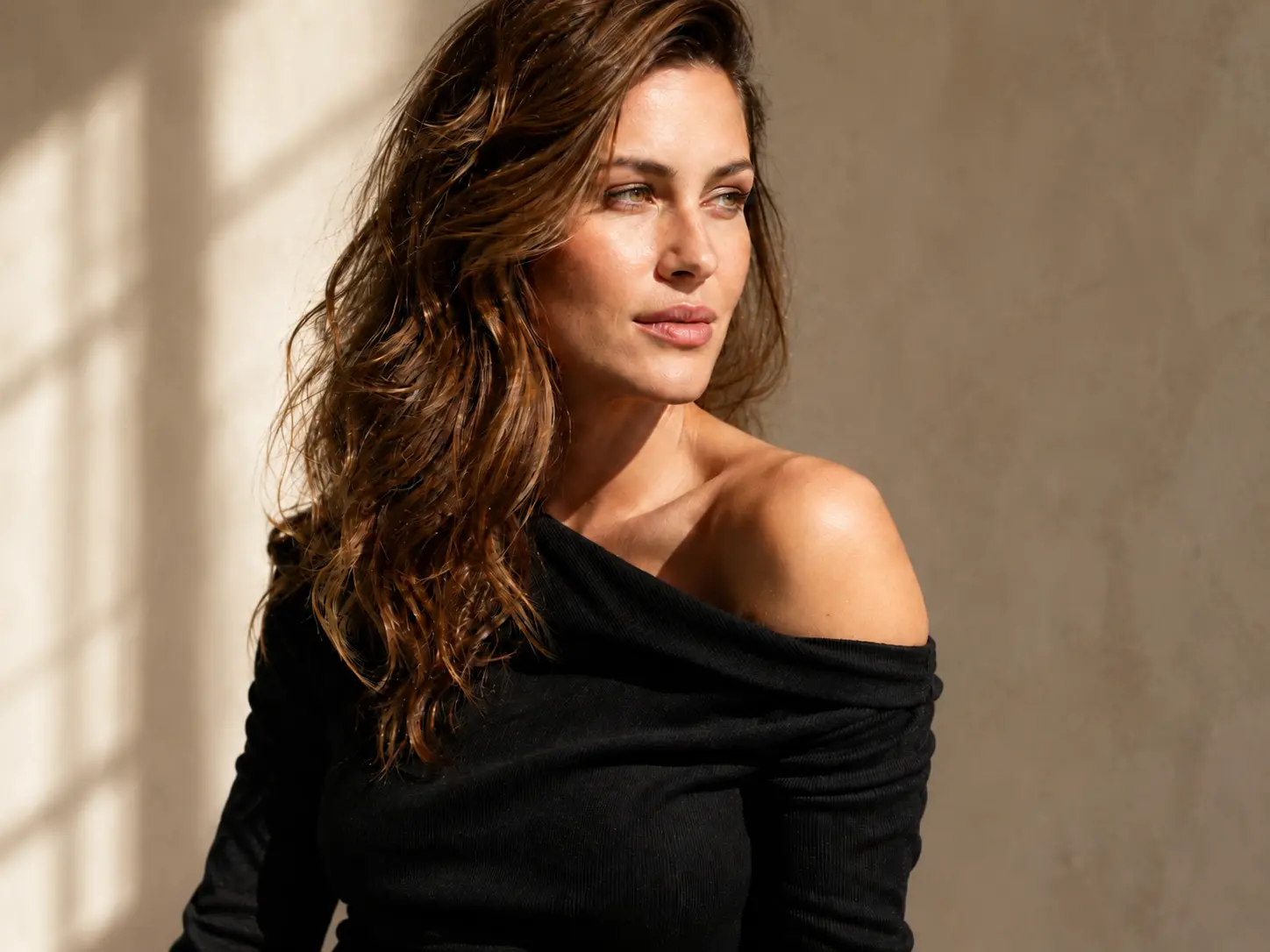
Upload the subject image
Choose the portrait or object photo that should appear in the final result.
 ImageHub
 AI Background Changer
Upload a subject image and a background image. ImageHub generates a new scene around the subject so you can review the result before finalizing it.
Subject image
Click, drop, or paste the subject photo.
Background image
Click, drop, or paste the new scene.
Upload both images to generate a preview you can compare before final use.
Result preview
Drag to inspect the sample background change.


Drag the split line to compare the source portrait and the generated background sample.
Processing your image…
Please keep this page open while your image is being generated.
Two inputs
The AI Background Changer works from two visual inputs. Start with the subject photo, then add the background image that should become the new scene.
Choose the portrait or object photo that should appear in the final result.
Upload the scene, room, backdrop, or product setting you want behind the subject.
Run the background change and inspect how the subject fits the selected scene.
Result check
A useful background change should be easy to inspect. Compare the subject image, the background image, and the generated scene so you can judge subject edges, scale, and lighting.
Sample review board
Subject, background, and generated options.


What you can make
Use the AI background changer when the subject is useful but the setting is not. The strongest results start from a clear subject image and a background image with compatible perspective and light.

Replace a busy room or casual snapshot setting with a cleaner portrait background for profile use.

Test a new scene behind a phone portrait before using it in a thumbnail, post, or cover image.

Try lifestyle, studio, or brand-direction backdrops around a product image while keeping usage and rights checks separate from the edit itself.

Pair a subject image with different background images to explore directions for a concept.

Rework a portrait or subject photo into a cleaner, calmer, or more expressive scene.
Image guidance
A useful background image gives the workflow a clear scene behind the subject. Pick a setting with enough room, compatible light, and a practical composition.
Add your background imageUse a background image with enough room for the subject and a setting that matches the use case.
Backgrounds with similar lighting and perspective usually make the generated result easier to review.
Upload background and subject images you own or have permission to edit.
Hair, shadows, glass, hands, and fine edges can vary by image, so inspect the generated result before final use.
Background examples
FAQ
These answers keep the background-changing workflow clear and set expectations before you upload a subject image and background image.
An AI background changer replaces or changes the setting behind a subject in an existing image. For this ImageHub workflow, you provide a subject image and a background image so the generated result has a clear visual target.
Start with the subject photo you want to change, add the background image you want to use, then generate the result and review whether the subject, scale, lighting, and background direction work together.
The background image gives the workflow the target scene for the edit. It should be clear enough to show the setting, mood, color, lighting, and perspective you want behind the subject.
Yes, the page is written around portrait and subject-photo background changes. Use a clear subject image and a practical background such as a studio, office, simple wall, or outdoor scene. Review the result carefully before using it as a profile image.
Generated results can vary by image pair. Clear subjects, simple edges, and compatible background lighting usually make review easier overall. Check the preview for hair, shadows, lighting, subject scale, and any details that need another generation.
You can use the workflow to explore product-background concepts, campaign mood boards, and creative directions. Usage rights, marketplace rules, and ad approval are separate from the edit itself, so check the relevant terms and requirements before using generated visuals commercially.
Yes. 3 free tasks per user per day, shared across all ImageHub tools. Results have no ImageHub watermark, and no account is required on this individual tool page.
You upload a subject image and a background image in the browser to run the background-change workflow. For storage, deletion, retention, or training-use details, rely on ImageHub's posted policy and avoid uploading sensitive or unauthorized portraits when that policy is not clear.
Ready to change it?
Bring the photo you want to change and the background image you want to use. ImageHub will generate a new scene around the subject so you can review the result.
Start with your imageRelated ImageHub tools
Remove a photo background when you need a transparent subject or cutout-style output.
Make a white product background when the backdrop should stay plain and consistent.
Remove objects from a photo before or after changing the background.
Extend an image canvas when the subject needs more room around it.