
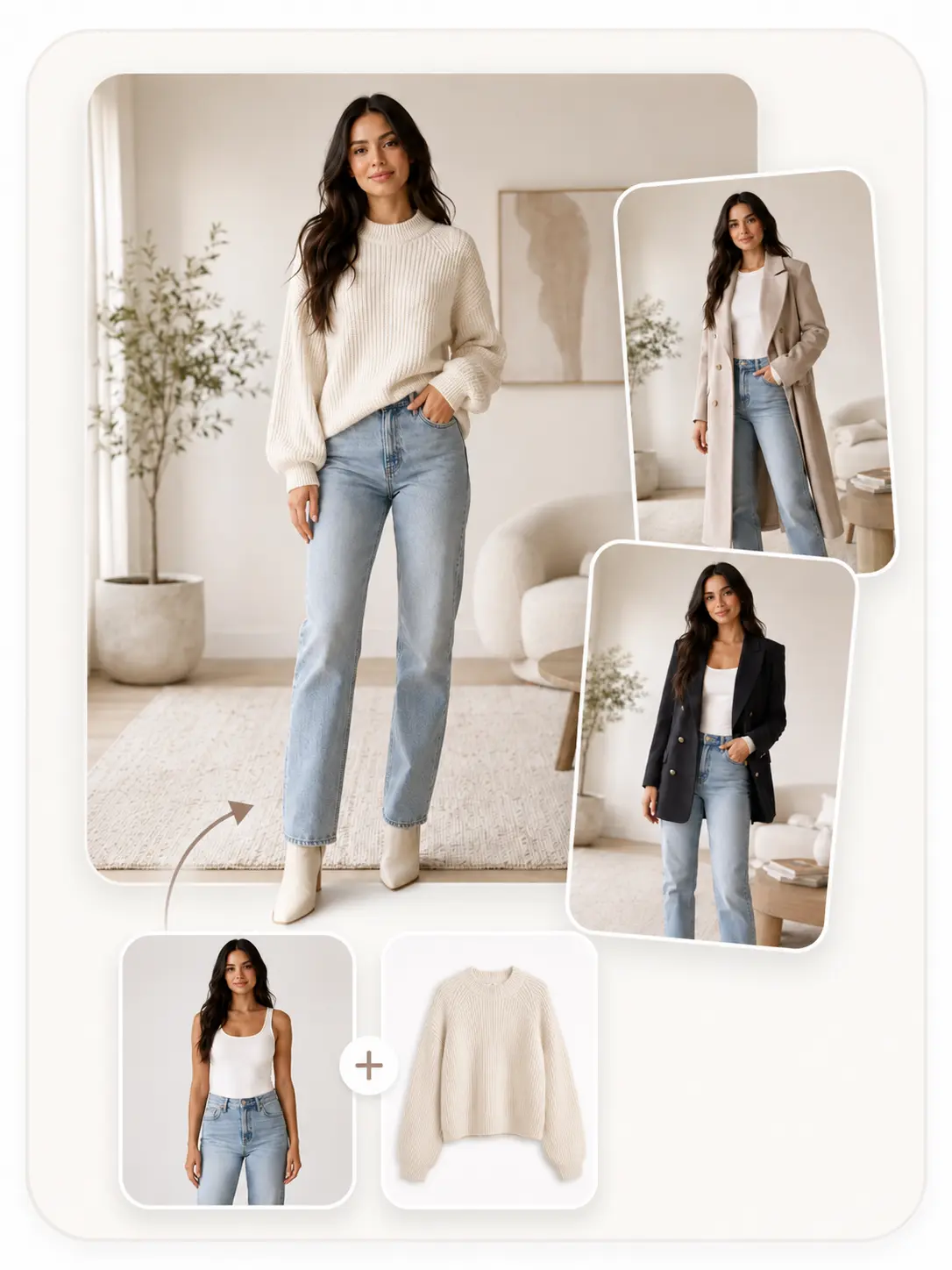

Your brand's regular hero model
Drop in the photo your team already shot - full-body or upper-body, studio or daylight. The try-on keeps the face, hair, and pose, then drapes the new garment.
- Full-body input
- Upper-body input
- JPG, PNG, or WebP
 ImageHub
 Upload a model photo and a flat garment photo — get the outfit dressed on the model, without booking a shoot or cutting the garment out by hand.
Your model
Real photo or AI avatar
Your garment
Flat laydown or packshot
Skip the photoshoot
Every new garment is another shoot on the calendar - a model day, a stylist, a studio slot, a re-export pass. Listings wait while the budget line refills.
Drop one model photo plus the garment laydown, and you get the on-model image for the listing draft in the same minute the photographer would have started setting up lights.
Same face, every variant
A real shoot locks you into whatever the model wore that day. Pick a model photo once, then run garment after garment through it - useful for catalog spreads, look comparisons, or A/B testing two prints before you commit to one.

Try another garment
Generated try-on - Cream knit sweater

Either input works
Some teams want a recognisable face on the listing. Others want a neutral AI avatar so the campaign isn't tied to one person. The try-on takes either - full-body, upper-body, or a Stable-Diffusion / Midjourney render through the same flow.
Drop in the photo your team already shot - full-body or upper-body, studio or daylight. The try-on keeps the face, hair, and pose, then drapes the new garment.

Stable Diffusion, Midjourney, or any AI-rendered model image goes through the same flow as a real photo - useful when a campaign shouldn't be tied to one person.
A real photo, full body or upper body, or an AI-generated avatar. The try-on keeps the face, hair, and pose intact across runs.
A flat laydown or a packshot - whichever the supplier sent you. Tops, bottoms, dresses, and outerwear are all supported.
Review the on-model image, download it in HD, or keep the same model loaded and run the next garment through.
Upload your photos →
What's supported
Know what you can hand the try-on before you upload - and what comes out on the other side, every run.
One model image plus one garment image. No multi-step capture, no profile setup.
Full-body or upper-body. Stable Diffusion / Midjourney avatars run through the same flow as photographs.
Tops, bottoms, dresses, and outerwear are supported. Flat laydowns and packshots both work as inputs.
Download an HD on-model image - ready to drop into a listing draft, slide, or moodboard.
3 free tasks per user per day, shared across all ImageHub tools. No account is required on this individual tool page.
No install, no download, no plugin. Open the page, drop two photos, get the on-model image.
Honest by default
Generated try-ons are good enough for listing drafts, mockups, and reference, but you'll want to glance at a few places before publishing.
Collar shape and seam line are where mis-fits show first. Look at where the garment meets the model's skin and hair.
Both should land where the garment would in a real wear - wrist for full sleeves, the natural waist for a hem.
Confirm orientation and that nothing is smeared or partially redrawn. Centered prints are the easiest to verify at a glance.
These are the hardest cases - a coat over a hoodie, sheer chiffon, knife pleats. Plan for a retouch pass before publishing.
Dress the next garment on the model your storefront already trusts - for the Shopify listing - without booking another studio day or waiting on a re-edit pass.

Common questions
Practical answers about garment types, model input, output, and how the try-on chains with the rest of ImageHub.
The version of this job that doesn't need a studio.
Upload your model and garment →