ImageHub
Upload a Photo
AI Generate
AI Enhance
AI Remove
AI Edit
AI Beauty

Open Closed Eyes in Photos with AI

The group photo is the keeper—except someone blinked. Upload it to ImageHub and get natural-looking open eyes with realistic shadows in seconds.

Free · No login · No watermark · HD output · Works in your browser

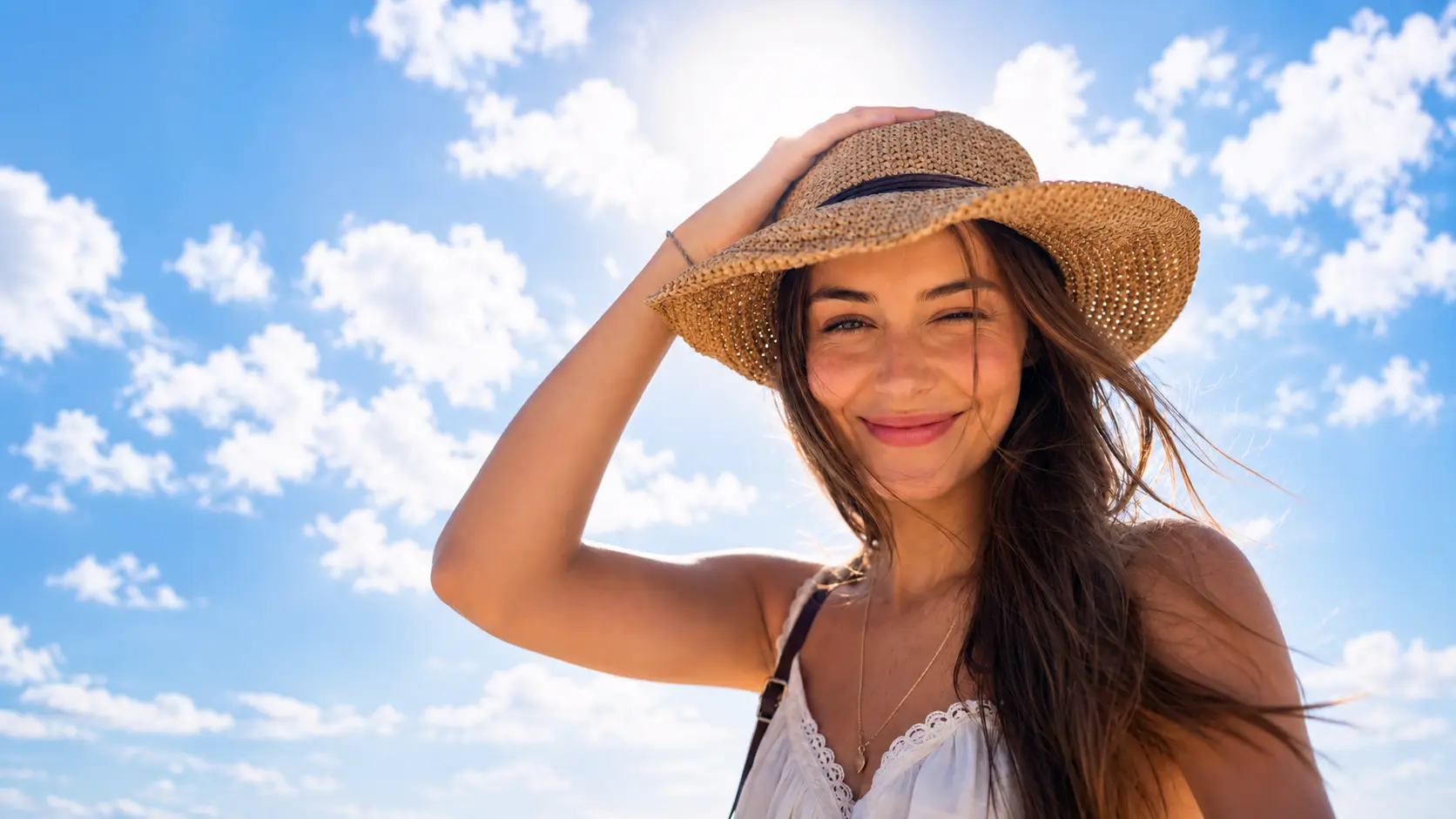
A sunny beach portrait before repair, with the subject squinting.
The same sunny beach portrait after AI opened the subject's eyes naturally.
Before · mid-blink
After · eyes open

Upload a photo with closed eyes

or click to browse (Supports PNG, JPG, WebP)

  • Free, no login
  • No watermark
  • HD output
  • Works in your browser

Before / after

The Photo Was Right. The Timing Was Off.

The pose worked. Everyone was together. Then the shutter caught a blink. When the moment can’t be recreated, replacing the photo is not the answer. Fix the eyes and keep the shot you already wanted.

Upload a Photo →
A close-up portrait before repair, with the subject squinting in bright light.
The same close-up portrait after AI opened the subject's eyes naturally.
Before · closed eyes
After · eyes open

Drag the split line to compare the blink with the repaired photo.

Result quality

Open Eyes That Belong in the Photo

Closed eyes are more than a blank space to fill. The new eyes need to sit naturally with the face and the light already in the shot. ImageHub generates natural-looking eyes and adds realistic shadows, so the photo still feels like the moment you captured.

  • Natural-looking eyes
  • Realistic shadows
A two-person selfie before repair, with one subject's eyes closed.
The same two-person selfie with natural-looking open eyes and consistent lighting.
Closed eyes
Eyes opened

Compare the original eye area with the natural-looking repaired result.

Three steps

Fix Closed Eyes in Three Steps

Step1

Upload the Photo You Want to Keep

Choose the image where a blink or closed eyes got in the way.

Step2

Start the Repair

ImageHub rebuilds the eye area with natural-looking detail and realistic shadows.

Step3

Download the Finished Photo

Save the repaired image in HD.

Upload a Photo →
Three-step AI Open Eyes workflow showing upload, automatic eye repair, and image download.

Use situations

For the Shots That Don’t Get a Second Take

Some photos can be repeated. These are the ones people come back to.

Situation 01

Wedding Portraits

A wedding photographer has the right smile, pose, and framing—but one person blinked. Repair the eyes and keep the frame in the final gallery.

Situation 02

Family Reunions

The person building the family album finally has everyone in one frame—but one blink makes the photo feel unusable. Fix it and keep the group shot.

Situation 03

Bright-Sunlight Photos

A traveler reaches the viewpoint once, the light is harsh, and the shutter catches closed eyes. Repair the photo without giving up the scene behind it.

Situation 04

Client-Ready Portraits

A portrait photographer gets the expression and framing the client wanted, except for a blink. Fix the eyes and use the HD result in the delivery set.

Feature facts

One Photo In. One Finished Photo Out.

There is no app to install and no account to create. Open ImageHub in your browser, run the repair for free, and save the finished image without a watermark.

InputOne photo
ResultOne repaired photo
AccessFree, no login
DownloadHD, no watermark
PlatformBrowser-based

Before you upload

Frequently Asked Questions

Can I use AI Open Eyes for free?
Yes. AI Open Eyes is free, and you can upload a photo without signing in.
Will the downloaded photo have a watermark?
No. The finished photo downloads in HD with no watermark.
Do I need to install an app?
No. AI Open Eyes runs in your browser, so there is no desktop or mobile app to download.
How quickly does ImageHub fix closed eyes?
The repair takes seconds. Once processing finishes, download the edited photo.
Will the opened eyes look natural?
ImageHub generates natural-looking eyes and adds realistic shadows around the repaired area, keeping the edit consistent with the surrounding photo.
Can I use it on a wedding or group photo?
Yes. Upload the frame where a blink got in the way, repair the closed eyes, and keep the photo you wanted to use.

Don’t Delete the One You Meant to Keep.

Upload the photo, fix the closed eyes, and download the HD result without leaving your browser.

Open Eyes in My Photo

Free · No login · No watermark

Quick check before we start

Confirm you are human, then continue. This keeps the tools free and available for everyone.